Setting up Google Workspace for cold email is the foundation of deliverability. Without the correct domain structure, authentication records, and warm-up schedule, your emails land in spam. This guide walks through every step — from choosing secondary domains to configuring SPF/DKIM/DMARC to scaling volume — using the same process ACA uses to set up client campaigns.
Why Google Workspace for Cold Email?
Google Workspace (formerly G Suite) is the preferred email provider for cold email because Gmail's sending infrastructure carries better reputation than most dedicated SMTP services. Emails sent from a properly configured Google Workspace inbox land in the primary tab more consistently than those sent through SendGrid, Mailgun, or Amazon SES, especially when targeting Gmail and Google Workspace recipients.
The tradeoff is scale. Google enforces strict sending limits per inbox — 2,000 recipients per day (500 per SMTP relay) — and aggressively monitors for spam complaints. Exceed these limits without a warm-up period and Google locks your account. But within those constraints, Google Workspace delivers the best inbox placement rates for B2B cold email.
Use Google Workspace when: you prioritize inbox placement over raw volume, you are sending fewer than 2,000 emails per inbox per day, and you want the best primary-tab placement for B2B outreach.
Use a dedicated SMTP (like SendGrid) when: you need to send 10,000+ emails per day from a single account and can accept promotions-tab placement for a portion of sends.
Step 1: Choose Secondary Domains for Outreach
Never send cold email from your primary business domain. If that domain gets flagged or blacklisted, your business email and website go down with it. Use secondary domains that are believable variants of your brand.
Domain naming rules:
- Use 3-5 secondary domains for a typical agency setup (300-500 emails/day total)
- Keep domains related to your brand:
acme-team.com,acmegroup.co,helloacme.io - Avoid random or obviously manufactured names — prospects who Google your domain should find something legitimate
- Register each domain at a different registrar (Namecheap, GoDaddy, Cloudflare) to avoid bulk-ownership flags
- Enable privacy protection (WHOIS guard) on all domains
In our experience, registrars and mailbox providers treat domains from different registrars more favorably than five domains all registered at GoDaddy under the same account.
Step 2: Create Mailboxes in Google Workspace
With your secondary domains registered, create the mailboxes. Google Workspace Business Starter ($6/user/month) is sufficient for cold email — you do not need Google Vault or shared drives.
Recommended mailbox-to-domain ratio: 2-3 mailboxes per domain. More than that concentrates reputation risk — if one mailbox generates spam complaints, all mailboxes on that domain suffer.
For sending 300 emails per day:
- 5 secondary domains
- 2 mailboxes per domain (10 total)
- 30-40 emails per mailbox per day
- All warmed for 4 weeks before use
Cost: 10 mailboxes x $6 = $60/month. Domain registrations: 5 x $12/year = $5/month. Total infrastructure: ~$65/month.
Step 3: Configure DNS Records (SPF, DKIM, DMARC)
This is the most skipped step — and the most important one. Since February 2024, Google and Yahoo require SPF, DKIM, and DMARC for bulk senders. Configure all three before you send a single email.
SPF Record
SPF tells receiving mail servers which IPs are authorized to send email for your domain.
v=spf1 include:_spf.google.com ~allIf you use a third-party sending service (SendGrid, Mailgun) from the same domain, add their include directive. Keep the total DNS lookups under 10.
DKIM Record
DKIM adds a cryptographic signature to your emails.
In Google Workspace admin: Apps > Google Workspace > Gmail > Authenticate email. Generate a 2048-bit key. Google provides a DKIM host name and TXT record value. Add it to your domain's DNS.
DMARC Record
DMARC tells receivers what to do when SPF or DKIM fails.
v=DMARC1; p=none; rua=mailto:dmarc-reports@yourdomain.comStart with p=none for 2-4 weeks, review reports, then escalate to p=quarantine and eventually p=reject.
| Record | DNS Type | Value | Why It Matters |
|---|---|---|---|
| SPF | TXT | v=spf1 include:_spf.google.com ~all |
Authorizes Google IPs to send |
| DKIM | TXT | Google-generated key | Signs emails cryptographically |
| DMARC | TXT | v=DMARC1; p=none; rua=mailto:...@yourdomain.com |
Sets policy for failed auth |
| MX | MX | aspmx.l.google.com |
Routes email through Google |
Step 4: Warm Up Mailboxes
Even with perfect authentication, a brand-new mailbox that sends 50 cold emails on day one will get flagged. Warm-up builds sending reputation gradually.
Week-by-week warm-up schedule:
| Week | Daily Volume | Activity |
|---|---|---|
| Week 1 | 5-10 emails | Automated warm-up service (Mysuite, Warmbox, Mailflow) |
| Week 2 | 15-20 emails | Warm-up service + 5 personal replies to warm-up exchanges |
| Week 3 | 25-35 emails | Warm-up service + start low-volume real outreach (10-15/day) |
| Week 4+ | 40-50 emails | Full cold outreach; continue warm-up in background |
Run a warm-up service continuously, even after the mailbox is fully active. The ongoing simulated engagement keeps your reputation baseline healthy between campaign bursts.
Cold email open rate benchmark for warmed Google Workspace inboxes: 40-60% open rate on the first email of a sequence, 15-25% reply rate on multi-step cadences. Below 30% open rate after Week 4 usually indicates a warm-up issue or authentication problem. Source: aggregated from ACA campaign data across 200+ client accounts.
Step 5: Configure Sending Strategy in Your Outreach Tool
With warmed mailboxes and DNS records in place, connect them to your outreach platform. In ACA, you connect each Google Workspace mailbox individually and set per-mailbox sending limits.
Settings to apply per mailbox:
- Daily send limit: 40-50 emails max (Google's silent limit is 2,000, but staying at 40-50 protects reputation)
- Send schedule: Business hours only, recipient timezone (9 AM - 5 PM local)
- Sending gap: 60-120 seconds between emails — never burst
- Bounce handling: Auto-remove hard bounces from the list; stop sending to that domain for 7 days if bounce rate exceeds 2%
- Reply routing: Route all replies to a unified inbox so you never miss a conversation
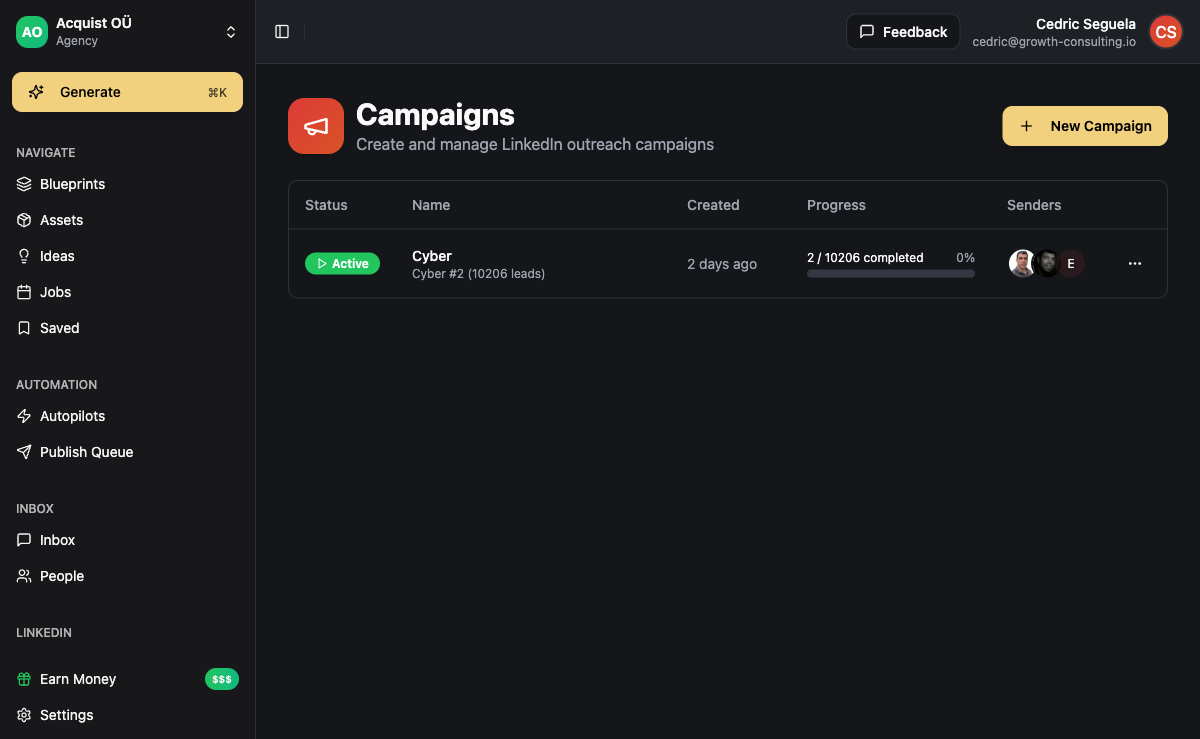
ACA's campaign builder lets you assign inboxes per channel. You can rotate between 10 Google Workspace mailboxes across 5 domains, each sending 40 emails per day for a total of 400 emails/day with minimal reputation risk.
Step 6: Monitor Deliverability Metrics
Configuration is never "set and forget." Monitor these metrics weekly:
- Open rate per inbox: A drop of 20%+ from baseline indicates a deliverability problem
- Bounce rate: Below 2% is healthy. Above 5% means a dirty list or blacklisting
- Spam complaint rate: Google Postmaster Tools shows this. Above 0.1% triggers warnings; above 0.3% triggers active filtering
- Inbox placement: Use GlockApps or Mailreach to test — you want 95%+ inbox placement for a warmed mailbox
- Reply rate: A steady decline across weeks often means your domain is being throttled, not that your copy is bad
ACA provides per-inbox performance metrics so you can identify a failing mailbox before it brings down the whole domain. If one inbox shows a bounce rate spike, rotate it out and swap in a fresh one from the pool.
Common Mistakes to Avoid
After setting up hundreds of Google Workspace accounts for client campaigns (and breaking plenty in the process), here are the mistakes we see most often:
- Sending from a new domain without warm-up. The fastest way to a permanent block. Minimum 3 weeks of warm-up before real outreach.
- Using the same registrar for all domains. Mailbox providers treat bulk-registered domains with suspicion. Spread them across 2-3 registrars.
- Skipping DMARC. Google's February 2024 requirements mean no DKIM/DMARC equals automatic spam filtering for high-volume senders. It is not optional.
- Exceeding 50 emails per inbox per day. Google's account-level limit is 2,000, but staying under 50 per inbox protects your sending reputation and prevents account review locks.
- Ignoring bounce rates. A single hard bounce hurts your sender score. Multiple bounces on a new domain can get it blacklisted within 24 hours. Verify your list before import.
- Not isolating client workspaces. If one client's campaign goes wrong, you do not want their deliverability issues contaminating your other clients. Use separate Google Workspace accounts per client or use a tool like ACA with isolated workspaces.
How ACA Handles Google Workspace Setup for Clients
ACA's platform is designed for agencies that manage multiple clients. The workspace isolation means each client has their own separate environment — separate domains, separate mailbox connections, separate sending histories. One client's deliverability issue never affects another.
When configuring a new client outreach campaign, the typical ACA workflow is:
- Domain registration: Provide 3-5 secondary domain names to the client for approval
- Mailbox creation: Create 2-3 Google Workspace mailboxes per domain (client pays for the Workspace seats)
- DNS configuration: Add SPF, DKIM, DMARC, and MX records to each domain's DNS
- Warm-up: Run a warm-up service on each mailbox for 3-4 weeks before any real outreach
- ACA connection: Connect each mailbox to the client's workspace in ACA via SMTP/IMAP or API
- Campaign launch: Start at 20 emails per inbox per day, increasing to 40-50 after Week 1
This process takes about 45 minutes of hands-on work per client (excluding warm-up time). The client pays the $6/month per mailbox directly to Google, keeping the agency's overhead minimal.
ACA also supports BYOK (Bring Your Own Key) so agencies never pay a per-client tool fee. This is how agencies maintain 80%+ margins on $3,000/month outreach retainers.
Short answer: Setting up Google Workspace for cold email requires (1) 3-5 secondary domains, (2) 2-3 mailboxes per domain on Google Workspace Business Starter ($6/mo each), (3) SPF/DKIM/DMARC DNS records, (4) 3-4 weeks of mailbox warm-up, and (5) cautious sending limits of 40-50 emails per inbox per day. ACA automates the connection, rotation, and monitoring so agencies can manage 10+ client setups without manual overhead.
Frequently Asked Questions
Can I use my primary business domain for cold email?
No. If your primary domain gets blacklisted (from spam complaints, high bounce rates, or a compromised account), your business email and website go down. Always use secondary domains specifically registered for cold outreach.
How many Google Workspace mailboxes do I need to send 500 emails per day?
At 40-50 emails per mailbox per day, you need 10-12 mailboxes spread across 4-6 domains. This protects you if one domain has a deliverability issue — you rotate it out and the rest keep running.
How long does it take to set up Google Workspace for cold email?
The DNS and mailbox creation takes 30-60 minutes. The warm-up period takes 3-4 weeks before you can send real outreach. Do not skip this. Sending cold email from a brand-new Google Workspace account without warm-up will get it flagged within 24 hours.
Do I need Google Workspace Business Starter or a higher tier?
Business Starter at $6/user/month is sufficient. The higher tiers add Google Vault, enhanced security, and larger storage — none of which matter for cold email. Save the cost.
What is the maximum daily send limit per Google Workspace mailbox?
Google's published limit is 2,000 recipients per day (500 per SMTP relay). But for cold email reputation, limit yourself to 40-50 per day per inbox. Going higher increases the risk of account review, throttling, or spam filtering. The difference between 50 and 500 emails per day from a single inbox is not just volume — it is how Google's abuse detection evaluates the sending pattern.
Does ACA support Google Workspace mailboxes?
Yes. ACA connects to Google Workspace mailboxes via SMTP/IMAP and the Gmail API. Each mailbox is configured individually with its own sending limits, warm-up status, and performance metrics. ACA's unified inbox pulls replies from all connected mailboxes into one view so you never miss a conversation.
What happens if one of my Google Workspace accounts gets flagged?
You pause that mailbox in ACA, remove it from the campaign, and rotate in a fresh warmed mailbox from your pool. Meanwhile, you work with Google Workspace support to resolve the flag (usually a warm-up compliance form and a 72-hour holding period). The rest of your campaign continues unaffected because each mailbox is tracked and managed independently.